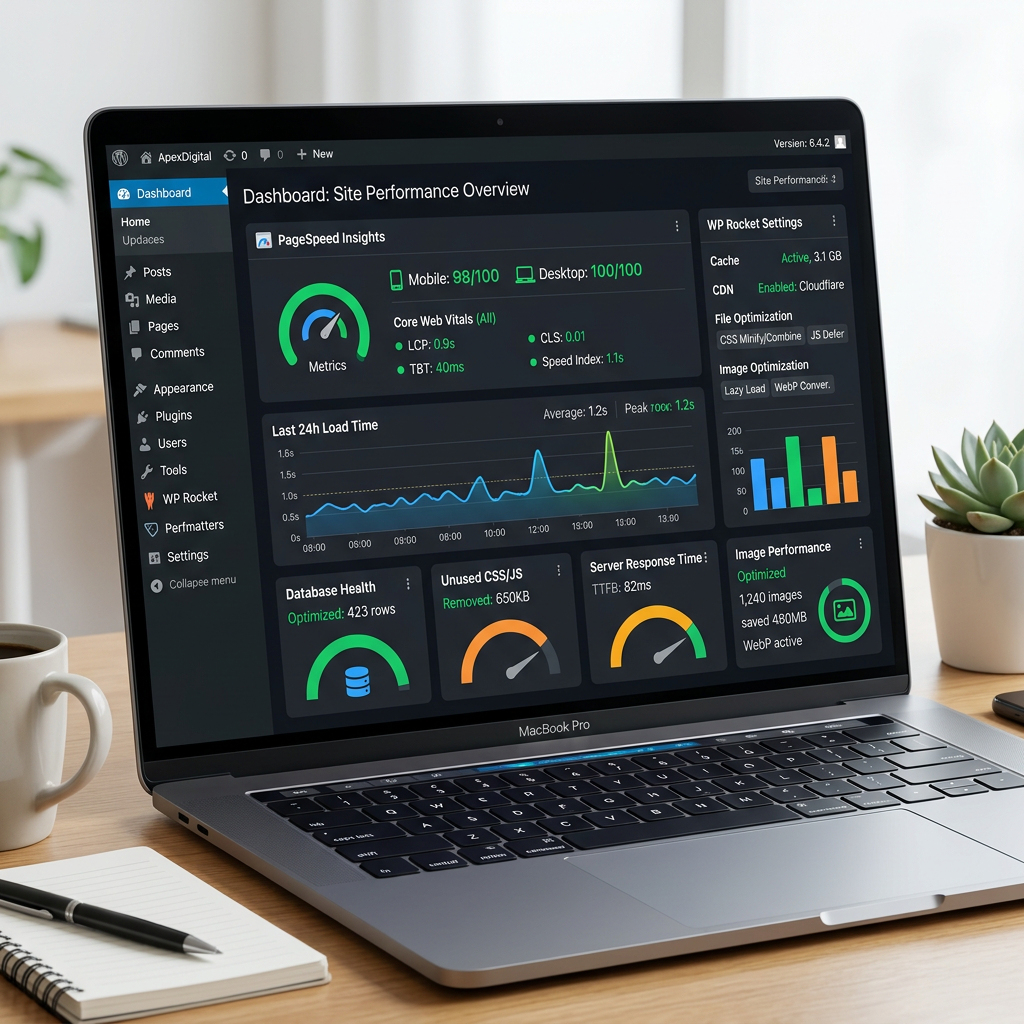
How to Speed Up a WordPress Site in 2026
How to Speed Up a WordPress Site in 2026
A slow WordPress site costs you in two places at once: Google ranks faster pages higher, and visitors abandon slow ones before they ever see your offer. The good news is that most WordPress speed problems have straightforward fixes — and you don’t need to rebuild anything from scratch. This guide walks through the highest-impact steps, in order, so you can work through them systematically and see real results.
Why WordPress Speed Matters More Than Ever
Google’s Core Web Vitals — Largest Contentful Paint (LCP), Interaction to Next Paint (INP), and Cumulative Layout Shift (CLS) — are confirmed ranking signals for both desktop and mobile search. As of late 2025, only about 44% of WordPress sites on mobile pass all three Core Web Vitals. That means the majority of WordPress sites are leaving search visibility on the table.
Beyond SEO, page speed directly affects conversions. A site that loads in one second converts significantly better than one that loads in three — and for small businesses where each lead matters, shaving load time is one of the highest-ROI improvements you can make.
Step 1: Fix Your Hosting Foundation First
No caching plugin or image optimizer can fully compensate for bad hosting. Shared hosting puts your site on a server alongside hundreds of others — when traffic spikes hit any of them, your site slows down too.
If you’re on entry-level shared hosting and your site is sluggish, upgrading your hosting is the single highest-leverage move you can make. Managed WordPress hosts like Kinsta, WP Engine, Cloudways, and SiteGround offer server-level caching, modern PHP versions, and CDN integration by default — often making every other optimization step easier.
While you’re at it, check your PHP version. Upgrading from PHP 7.4 to PHP 8.x can improve performance by up to 42% in requests per second. Most managed hosts let you switch PHP versions in your control panel in under a minute.
Step 2: Optimize Images — Usually Your Biggest Win
Unoptimized images are the leading cause of bloated page weight on WordPress sites. Images commonly account for 50–70% of total page size, which means image optimization typically delivers the fastest visible improvement for most sites.
Here’s what to do:
- Compress before uploading. Tools like TinyPNG compress JPEGs and PNGs without visible quality loss.
- Serve in WebP format. WebP images are typically 25–35% smaller than equivalent JPEGs. Plugins like ShortPixel or Imagify can convert your existing media library automatically.
- Enable lazy loading. WordPress loads images lazily by default since version 5.5 — confirm it’s active and hasn’t been disabled by a plugin or theme.
- Set explicit dimensions. Adding
widthandheightattributes to every image prevents layout shift (the CLS metric) and helps the browser allocate space before the image loads.
Step 3: Install a Caching Plugin
Every time someone visits a WordPress page without caching, the server runs PHP and queries the database to build that page from scratch. Caching stores the finished HTML output and serves it directly on the next visit — skipping the database entirely and cutting server response time dramatically.
Popular options:
- WP Rocket — the most fully-featured paid option; handles page caching, file minification, lazy loading, and database cleanup in one plugin.
- LiteSpeed Cache — free and exceptionally powerful if your host runs LiteSpeed web server (as many managed hosts do).
- W3 Total Cache — a reliable free option with broad server compatibility.
If your managed host provides its own caching layer (Kinsta and WP Engine both do), you may not need a separate caching plugin — running both can sometimes cause conflicts. Check your host’s documentation first.
Step 4: Add a Content Delivery Network
A CDN stores copies of your site’s static files — images, CSS, JavaScript — on servers distributed around the world. When someone visits your site, those files load from the nearest edge location rather than your origin server, reducing latency and Time to First Byte (TTFB).
For small business sites primarily serving a local audience — New Jersey, New York, the metro area — the latency benefit is less dramatic than for global sites. But a CDN still offloads static assets from your server and improves stability during traffic spikes. Cloudflare’s free tier is the easiest entry point: it proxies your domain, provides CDN functionality, and adds basic DDoS protection at no cost.
Step 5: Audit Your Theme and Plugins
Every active plugin adds HTTP requests and PHP overhead on each page load. A theme that loads multiple page builder libraries, a slider script, and a Google Fonts stack just to display a simple homepage is a common culprit behind poor PageSpeed scores.
On themes: Lightweight, performance-focused themes consistently outperform bloated multipurpose options. Kadence, GeneratePress, Astra, and Blocksy are all built with speed in mind and start fast before any optimization. If you’re using a heavy theme primarily for its design presets, a theme migration to a leaner option may be worthwhile.
On plugins: Deactivate and delete any plugin you’re not actively using. Then install Query Monitor to identify which remaining plugins are generating slow database queries or excessive HTTP requests on page load. That gives you specific targets rather than guesswork.
Step 6: Clean Your Database
WordPress accumulates overhead over time: post revisions, auto-drafts, spam comments, orphaned metadata, and expired transients. On an older site with a large content library, this can slow admin performance and contribute to longer query times on the frontend.
Run WP-Optimize or Advanced Database Cleaner to clear accumulated junk. Scheduling a monthly automated cleanup keeps the database lean without manual effort. On sites that have been running for several years, there may also be leftover plugin tables from deleted plugins — a developer can identify and remove those safely.
Step 7: Measure Before and After
Before changing anything, run a baseline test. Then test again after each major change so you know what actually moved the needle rather than assuming everything helped equally.
Tools to use:
- Google PageSpeed Insights — tests both mobile and desktop, gives Core Web Vitals scores, and surfaces specific fix recommendations.
- GTmetrix — provides a waterfall chart that shows which resources are loading slowly and in what order.
- Google Search Console → Core Web Vitals report — shows real-user field data from visitors who actually loaded your site.
Target benchmarks: LCP under 2.5 seconds, INP under 200 milliseconds, CLS under 0.1. PageSpeed scores in the 80s and 90s are achievable for most well-maintained WordPress sites without heroic effort.
For a deeper look at diagnosing what’s already dragging your scores down, see our guide on identifying and fixing a slow WordPress site.
When to Call a Developer
Most of the steps above are DIY-friendly. But a few situations benefit from professional help:
- Your PageSpeed score is below 40 and you’re not sure where to start
- A speed plugin broke your layout or checkout flow
- You need a theme migration to a lighter option without losing your design
- Your host won’t support server-level configuration changes (Nginx rules, object caching)
- You’re preparing for a marketing push and need verified, reliable performance
A professional WordPress developer will audit your full stack — hosting environment, theme, plugins, and code — and prioritize fixes by actual impact rather than generic checklists.
Frequently Asked Questions
How long does it take to see improvements after optimizing WordPress speed?
Most changes — caching, image compression, PHP upgrade — show up immediately in PageSpeed Insights. Real-user improvements in Google Search Console can take up to 28 days, since Google collects Core Web Vitals field data over a rolling 28-day window.
Will a caching plugin conflict with my page builder?
It can. Elementor, Divi, and Bricks sometimes conflict with CSS/JS minification settings in caching plugins. Most reputable caching plugins have page builder compatibility modes, but test your site carefully after enabling minification — especially checkout flows and contact forms.
Do I need a CDN if my customers are all local?
For a purely local audience, the latency reduction is smaller than for global sites. That said, a CDN still offloads static assets from your server, improves stability under traffic spikes, and Cloudflare’s free tier takes about 15 minutes to set up. It’s worth doing for every site.
Is a slow WordPress site always a hosting problem?
Not always. Slow sites typically have multiple contributing factors: hosting quality, unoptimized images, plugin bloat, and theme overhead. Hosting is often the highest-leverage single fix, but upgrading hosting alone without addressing images and plugins won’t always push you into the green.
How often should I run a speed audit?
Run one every time you make a significant change: new plugin, major content update, theme customization, or hosting migration. For active business sites, a quarterly check is a solid routine — things drift over time as plugins update and content accumulates.
Want a faster WordPress site without guessing at what’s broken? Cloudvision audits your site’s speed, hosting setup, and Core Web Vitals and tells you exactly what to fix first. Book a free audit online or call 732-444-7799.